
Access SharePoint integration
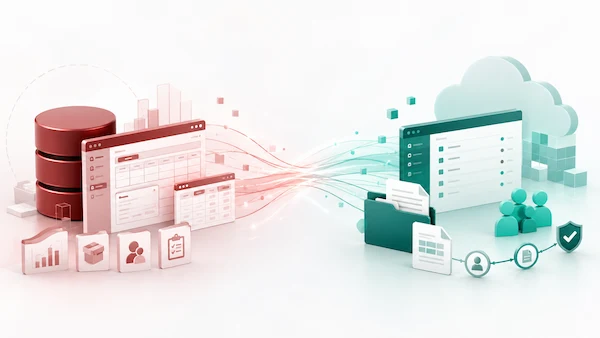
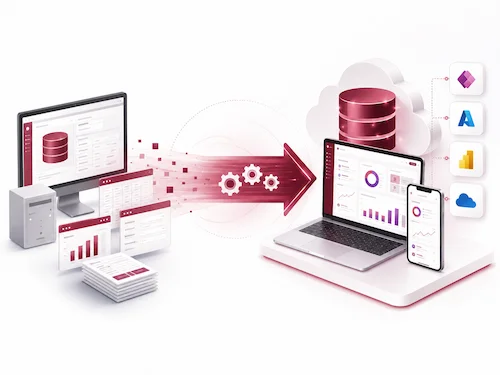
Many businesses rely on Microsoft Access for quoting, tracking, reporting, approvals, inventory, CRM, or internal operations. But when the database is stored as a local file or shared across a network drive, teams can run into version conflicts. We help businesses connect Microsoft Access with SharePoint where it makes sense.

TRUSTED BY



Your Access Database Was Built for Desktop — Your Team Isn’t
Microsoft Access can feel perfectly fine when it’s just a small, local setup. But as your team grows or needs flexibility, you start running into limits that slow things down.
Access + SharePoint Integration — Built for Collaboration
Depending on your system, integration may include moving Access tables into SharePoint lists, linking those lists back into Access, creating SharePoint-based workflows, setting up permissions, improving forms and queries, or designing a hybrid architecture with SQL Server or Power Apps.
With this integration, your system becomes easier to use across teams, supports collaboration, and handles growing data and workflows more reliably without constant workarounds.

Integration Architectures We Implement
Different Access systems need different approaches, so we don’t force a single setup. We design the integration based on how your data is used, how many people need access, and how complex your workflows are.
Overview
We connect your Access tables directly to SharePoint lists so the data lives in the cloud. Users still work inside Access, but the data is centrally stored and shared.
Best for
This works well for small to mid-sized applications that need a quick upgrade. It’s also a good option when you want faster deployment without changing too much.
In this setup, SharePoint replaces the Access backend based on your requirements, while Access remains the user interface. This separates the data layer from the front end.
Best for
Ideal for teams that need multiple users to work simultaneously. It is also well suited to remote teams that require reliable access from different locations.
We combine SharePoint lists with built-in workflows to automate key processes. Approvals, notifications, and updates can run automatically without manual follow-ups.
Best for
Great for businesses that rely on structured processes and want to reduce manual work. It helps keep tasks moving efficiently without constant oversight.
This approach connects your system through APIs or OData services, allowing data to move seamlessly between platforms. It creates a flexible setup that extends beyond Access and SharePoint.
Best for
Best suited to complex environments where multiple systems need to work together. It is especially useful when scalability and flexible integration are key priorities.
We split responsibilities across platforms—SQL handles large or complex datasets, SharePoint manages collaboration, and Access remains the user interface. This keeps performance stable while maintaining a user-friendly experience.
Best for
Ideal for larger or enterprise-level systems with heavier data workloads and more users. It provides a strong balance of power, flexibility, and usability.
How Data Flows Between Access and SharePoint
Access can connect to SharePoint lists as linked tables, allowing users to work with centrally stored data from the Access interface.
Linked table access
Bi-directional synchronization
Conflict resolution strategies
Data validation rules
What You Gain from Access SharePoint Integration
A properly planned Access and SharePoint integration helps your team keep the value of your existing Access system while improving collaboration, access control, and workflow efficiency.
Centralized Data
Instead of relying on separate database copies or shared local files, your data can be stored in SharePoint lists and accessed through connected Access tables. This reduces duplicate records, version confusion, and manual file merging.

Better Multi-User Collaboration
Teams can work from a shared data source, making it easier to update records, review information, and keep everyone aligned. This is especially useful for departments that rely on Access for tracking, reporting, approvals, or daily operations.
Remote-Friendly Access
SharePoint helps make business data more accessible to authorized users across locations. Your team can access shared information without depending only on a local desktop file or internal network connection.
Workflow Automation
Approvals, notifications, status updates, and reminders can be automated using SharePoint and Power Automate. This reduces repetitive manual follow-up and helps standardize business processes.

Permission-Based Security
Access can be controlled through Microsoft 365 and SharePoint permissions, helping ensure that users only access the information they are authorized to view or edit.

A Practical Modernization Path
You do not always need to rebuild your entire Access system immediately. For many businesses, Access + SharePoint can be a practical step toward a more modern Microsoft 365 environment, with future options.
Our Clients












































































When SharePoint Works — And When It Doesn’t
SharePoint is not always the best backend for large relational databases or complex transaction-heavy applications. When SharePoint is not the right backend, we may recommend SQL Server, Dataverse, Power Apps, or a hybrid model instead.
Secure and Controlled Data Access
Security and governance are essential when dealing with shared data, even if they’re sometimes overlooked at first. With SharePoint, there are built-in ways to manage access and protect information.
-

It provides a structured way to control who can view or edit content across sites and documents. It works fairly well, but it can get confusing when permissions start stacking.
-

Access is assigned based on user roles, so people only see what they actually need to. It’s efficient in theory, though managing roles properly takes some attention.
-

Rules can be set to manage how data is stored, used, and retained over time. This helps with compliance, even if setting up policies can feel complex.
-

Users need to verify their identity before accessing the system, adding an extra layer of protection. It’s generally reliable, although it depends on the authentication setup being done right.
Future-Proof Your Access System
For some businesses, Access + SharePoint is the right next step. For others, it may be a transition stage toward Power Apps, Dataverse, SQL Server, or a custom web application.
Access → SharePoint → Power Apps
This path moves your data from Access into SharePoint, then adds Power Apps for a more modern interface. It works well for simpler transitions, even if customization can feel limited at times.
Access → SQL Server → SharePoint Frontend
Here, data is stored in SQL Server for better performance, while SharePoint is used as the front-end layer. It’s more robust for complex needs, though setup and maintenance can be heavier.
Integration with Power Automate
Power Automate helps connect processes and automate tasks across the system. It adds efficiency, even if building flows can take some trial and error in the beginning.

Why Work With Us for Access SharePoint Integration?
We help businesses improve their Access systems in a practical way, without unnecessary complexity or unrealistic promises.
Our Integration Methodology
Our process is designed to reduce migration risk, protect business continuity, and ensure the new system is tested before users depend on it.
Discovery & System Audit
We start by reviewing your current system to understand how everything is set up and used. It gives a clear picture, even if some hidden issues only show up later.
Architecture Design
A system structure is planned based on your needs and future goals. It’s a crucial step, although translating ideas into the right design can take a bit of iteration.
Data Mapping & Preparation
Data is organized and aligned to fit the new system properly before moving it. This reduces errors, even if cleaning data can be more time-consuming than expected.
Integration Implementation
The actual setup and connection between systems is carried out here. It’s where things come together, though small issues can still pop up during execution.
Testing (Multi-User + Performance)
The system is tested with multiple users and different scenarios to check stability. It helps catch problems early, even if not every edge case is found right away.
Deployment
The system is launched and made available for real use. It’s a big step, though some fine-tuning is often needed after going live.
Training & Documentation
Users are guided on how to use the system and documentation is provided for reference. This improves adoption, even if not everyone picks it up at the same pace.
Ongoing Support
Support continues after deployment to handle issues and improvements over time. It keeps things running smoothly, although new needs can always come up later.
Real-World Integration Results
Sometimes the best way to understand the impact is by looking at real examples, even if every case is a bit different. These scenarios show what improvements are possible, though results can vary depending on the setup.
Example 1
A department was using a shared Access file for day-to-day data entry. Users experienced file conflicts, slow performance, and uncertainty about the latest version. We moved selected tables to SharePoint, linked them back to the Access frontend, and tested the system with 20+ users. The result was a more centralized workflow with fewer file conflicts and easier access for distributed users.
Example 2
Processes were handled manually, which slowed things down and increased the chance of errors. It worked, but not very efficiently over time. By combining SharePoint with automated workflows, repetitive tasks were reduced. It made operations smoother, even if setting up automation required some fine-tuning. The overall time needed to complete processes dropped. Results can differ, but the efficiency gain was quite noticeable in this case.
Make Your Access Database Work for Your Team How
At some point, desktop databases start to feel limiting, especially when more people need access. Moving toward a connected system can make things more efficient.
Stop relying on isolated desktop databases.
Enable collaboration, automation, and secure access with SharePoint integration, so your system works better for your whole team, not just in silos.
what our clients say about BSuite365?

I have been working with BSuite365 team on various projects over the last 4 years. It started with a complex mathematical problem and a simple spreadsheet. Their team always surprises me with their skills and passion for their work. They really work hard to ensure projects meet the business criteria and solve the business problems they need to. I will continue working with them to improve the business systems of our company.

Working with Sajad and his team at BSuite365 has been an easy and pleasant experience. The solution they built for us will save us dozens of hours of labour costs several times a year and has been well worth what we paid. I can easily recommend them and will not hesitate to work with them again in the future.

Sajad and his team have been extremely helpful in meeting our website needs. They listen to what your vision is and not only work around it, but help to flesh it out. I would highly recommend Sajad and BSuite365 to anyone with Technology needs.

At Persephone Brewing we utilize a number of systems to manage and report our data. BSuite365 System helped us streamline these processes by automating several business processes using our existing data sets saving us hundreds of hours a year at a very reasonable cost.
