
Microsoft Forms Automation
Microsoft Forms is great for collecting responses, but most business processes need more than data collection. We help organizations connect Microsoft Forms to Power Automate, SharePoint, Excel, Teams, Outlook, Power BI, and CRM systems so every submission can trigger notifications, approvals, task assignments, record updates, and reporting automatically.
Need to automate an existing Microsoft Form? Book a workflow review, and we’ll identify what can be automated, where the data should go, and how the process should be structured.


TRUSTED BY


What We Deliver
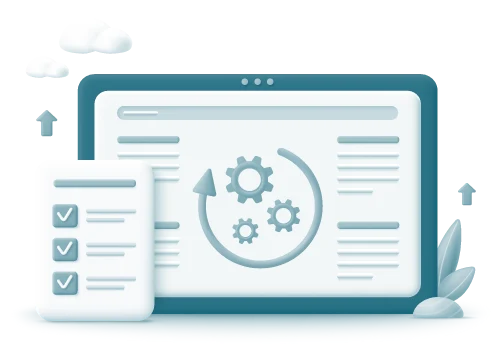
We help organizations move from basic form collection to structured, automated workflows with clear routing, approvals, records, alerts, and reporting.
Who This Is For
Microsoft Forms automation is a strong fit for organizations that collect information through forms. These are some of the teams that benefit most from automation.

Teams Relying on Manual Follow-Up
If your team manually reviews, forwards, or responds to form submissions, automation can save significant time. We help streamline follow-up tasks so the right actions happen automatically after a form is submitted.

Organizations Copying Data Between Systems
Manually moving form data into Excel, SharePoint, CRM systems, or emails can be time-consuming and error-prone. We automate data transfers so information reaches the right place without duplicate entry.

Businesses That Need Approval Workflows
Many forms require manager or department approval before work can move forward. We create approval workflows that route requests automatically and make decisions easier to track.

Teams That Need Better Visibility
It can be difficult to monitor the status of requests when everything is handled manually. We build workflows that provide clearer tracking, reporting, and visibility into each submission.

Organizations With Unreliable Existing Flows
Some Power Automate flows become difficult to maintain as processes evolve over time. We help improve and standardize existing workflows so they are more reliable and easier to manage.

Departments That Want Standardized Intake
Different teams often use different forms and processes for collecting information. We help create consistent intake workflows that are easier to manage, report on, and scale.
Our Clients







































































what our clients say about BSuite365?

I have been working with BSuite365 team on various projects over the last 4 years. It started with a complex mathematical problem and a simple spreadsheet. Their team always surprises me with their skills and passion for their work. They really work hard to ensure projects meet the business criteria and solve the business problems they need to. I will continue working with them to improve the business systems of our company.

Working with Sajad and his team at BSuite365 has been an easy and pleasant experience. The solution they built for us will save us dozens of hours of labour costs several times a year and has been well worth what we paid. I can easily recommend them and will not hesitate to work with them again in the future.

Sajad and his team have been extremely helpful in meeting our website needs. They listen to what your vision is and not only work around it, but help to flesh it out. I would highly recommend Sajad and BSuite365 to anyone with Technology needs.

At Persephone Brewing we utilize a number of systems to manage and report our data. BSuite365 System helped us streamline these processes by automating several business processes using our existing data sets saving us hundreds of hours a year at a very reasonable cost.
Microsoft Forms Automation Capabilities
Microsoft Forms automation is making sure the right things happen without people having to chase them. Below are the core automation scenarios we build and support.
| Capability | Example |
|---|---|
| Automatic notifications | Send confirmation to the submitter and alert the department manager in Teams |
| Record creation | Add submission to the SharePoint list or the Excel tracking table |
| Approval workflow | Route expense request to the manager if the amount exceeds the threshold |
| Task assignment | Create a Planner task based on the request type |
| CRM sync | Create a lead in Dynamics 365 from a contact form |
| Reporting | Feed structured data into the Power BI dashboard |
Common Workflows We Automate
Microsoft Forms can support a wide range of business workflows when the right automation is built behind it. These are common examples where forms often need to trigger approvals, notifications, records, tasks, or reporting.
-

Employee Onboarding Forms
New hire submissions can trigger onboarding checklists, IT equipment requests, manager notifications, payroll updates, and HR tracking records automatically.
-

Internal Request Forms
Department requests can be routed to the right team automatically, logged in SharePoint or Excel, and tracked through status updates from submission to completion.
-

Expense Approval Forms
Expense requests can be reviewed against business rules, routed to the correct approver, logged with timestamps, and sent to finance after approval.
-

IT Support Intake Forms
Support requests can create tickets, notify IT staff, assign tasks, and track issue status based on request type, priority, or department.
-

Customer Inquiry Forms
Customer inquiries can trigger email confirmations, sales notifications, CRM lead creation, and follow-up tasks so requests are handled efficiently.
-

Event Registration Forms
Registrations can update attendee lists, send confirmations, notify organizers, and feed reporting dashboards with registration activity data.
-

Compliance Acknowledgement Forms
Policy acknowledgements, safety confirmations, or training confirmations can be stored with timestamps and made easier to review during audits.
-

Vendor Intake Forms
Vendor submissions can be routed for review, stored in a structured list, and sent through approval or verification steps before onboarding.
-

Safety Incident Forms
Incident reports can notify the right stakeholders, create records, start review workflows, and support follow-up documentation requirements.
-

Quote Request Forms
Quote requests can be routed to sales or operations, create CRM records, trigger follow-up tasks, and centralize request details.
-

Training Registration Forms
Training submissions can update registration records, send confirmation emails, notify coordinators, and support attendance reporting activities.
-

Lead Capture Forms
Marketing or website leads can be captured, routed to sales, added to CRM, and included in campaign reporting automatically.
How Our Automation Process Works
Automation only works when it’s thought through end-to-end. Our process is designed to remove guesswork and deliver workflows.

Workflow Discovery

Form & Data Design

Automation Build

Testing & Validation

Deployment & Training

Support & Optimization
Before and After Automation
Automation changes what happens after a Microsoft Form is submitted. Instead of relying on people to move information manually, each response can follow a clear process with defined routing, records, notifications, and tracking.
| Before Automation | After Automation |
|---|---|
| Form responses often sit in Excel until someone checks them manually. | Responses can create structured records automatically in SharePoint, Excel, Dataverse, or another system. |
| Staff forward submissions to managers, departments, or support teams by hand. | Notifications are sent automatically to the right person based on the submitted information. |
| Approvals happen through email chains that are difficult to track. | Approval requests include timestamps, decision history, comments, and status updates. |
| Teams have limited visibility into whether requests are new, pending, approved, rejected, or completed. | SharePoint, Excel, or Power BI can provide clear status tracking and reporting. |
| Staff manually copy information from forms into other systems. | Data moves automatically between systems, reducing errors and duplicate work. |
| Auditing submissions and approvals requires reviewing emails and manual records. | Submission history, approvals, and workflow activity are easier to review and track. |
Use Cases by Department
These are the main areas where automation makes an immediate difference
Sales & Marketing
HR
Finance
Benefits of Microsoft Forms Automation
Automation isn’t about doing more for the sake of it. It’s about removing friction, reducing risk, and making everyday processes easier to manage as things scale.
Technology Stack & Integrations
We focus on tools that work well together. Microsoft Forms usually starts the workflow. Power Automate handles the logic, approvals, notifications, and integrations after each response is submitted.
Limits and Volume Assessment
The following areas should be assessed before confirming the final architecture:
Expected submission volume
We review the anticipated number of form submissions over time, including daily peaks, seasonal spikes, or campaign-related increases. This helps confirm whether the workflow design can support normal and peak usage.
Microsoft Forms response limits
Microsoft Forms may have response and form-related limits that affect how the solution should be structured. Reviewing these limits helps avoid issues with forms that receive a high number of submissions.
Connector limits
Power Automate connectors may have usage limits, throttling rules, or known limitations. These should be reviewed to confirm that the selected connectors are suitable for the expected workload.
Flow runs, actions, and duration
Each submitted form may trigger one or more Power Automate flow runs. We assess expected run volume, number of actions, and run duration to make sure the workflow approach is appropriate and does not create avoidable performance or reliability risks.
Power Platform request limits
Power Automate usage may also be affected by Power Platform request limits, which can vary based on licensing and flow design. We review these limits when workflows are expected to process higher volumes or include multiple actions per submission.
API calls and throttling
Some workflows rely on API calls to Microsoft services or third-party systems. These calls may be subject to rate limits or throttling, so the design should account for how often calls are made and how they are distributed.
Approval volumes
If the workflow includes approvals, we review how many approvals may be generated and who will manage them. This helps prevent bottlenecks and ensures the approval process remains practical at higher volumes.
Storage requirements
Form responses, attachments, logs, approval history, and related records may need to be stored in SharePoint, Dataverse, OneDrive, or another system. We review the storage approach to ensure it supports both current and future needs.
Downstream system capacity
Any system receiving data from the workflow should be reviewed for capacity, performance, and integration limits. This helps ensure that automation does not overwhelm another system in the process.
Why Choose Us
Many providers can build a basic flow. Fewer teams build automation that holds up over time, across people, systems, and change. This is where we’re different.
Deep Microsoft 365 & Power Platform Expertise
We work inside Microsoft 365 and the Power Platform every day. That experience matters when workflows get complex, or security and governance come into play.
Business-First Automation Design
We don’t start with tools — we start with how work actually happens. Automation only works if it fits the business process, not the other way around.
Clean, Scalable Architectures
Our workflows are structured to be readable, documented, and maintainable. That makes them easier to update, troubleshoot, and hand off as teams change.
Reliability, Security & Governance
Automation needs to be dependable. We design with error handling, permissions, and compliance in mind so workflows don’t quietly fail or create risk.
Ongoing Optimization & Support
Processes evolve. We offer ongoing support and optimization so automations continue to perform as needs, volume, and systems change.
Flow Ownership & Long-Term Maintenance
Power Automate flows should be designed with long-term ownership, supportability, and governance in mind. The following considerations should be addressed before the automation is finalized.
-

We help identify the appropriate owners, co-owners, and ongoing managers for each flow. This ensures the automation does not rely on a single employee and can continue to be supported as team members, roles, and responsibilities change.
-

For business-critical automations, we assess whether flows should be created within Power Platform solutions. Solution-aware flows can provide better control over ownership, connection references, deployment, and movement between environments.
-

We review how connections are configured for the services used by the flow, particularly when solution-aware flows are involved. Proper connection planning makes the automation easier to maintain, update, and migrate across environments when needed.
-

For business-critical automations, we help determine the most suitable ownership model. This may include named users with co-owners, a properly licensed service account, or a service principal where supported. This approach reduces the risk of flows failing due to changes in an individual user’s permissions.
-

For larger or business-critical workflows, we help plan where flows should be built and managed, such as development, testing, and production environments. A clear environment structure supports stronger governance, safer updates, and more efficient troubleshooting.
-

We review who should be responsible for monitoring, managing, updating, and troubleshooting the automation after deployment. The goal is to provide the client with the right level of visibility and control without granting unnecessary edit access to every user.
-

We consider how role changes, employee departures, disabled accounts, license changes, password changes, and permission updates may affect the automation. Planning for these scenarios helps reduce disruption and keeps workflows running reliably over time.
Case Studies & Success Scenarios
These examples show how Microsoft Forms automation solves real operational issues and delivers measurable results.
Engagement Models
Every organization approaches automation differently. We offer flexible engagement models to match where you are.
